
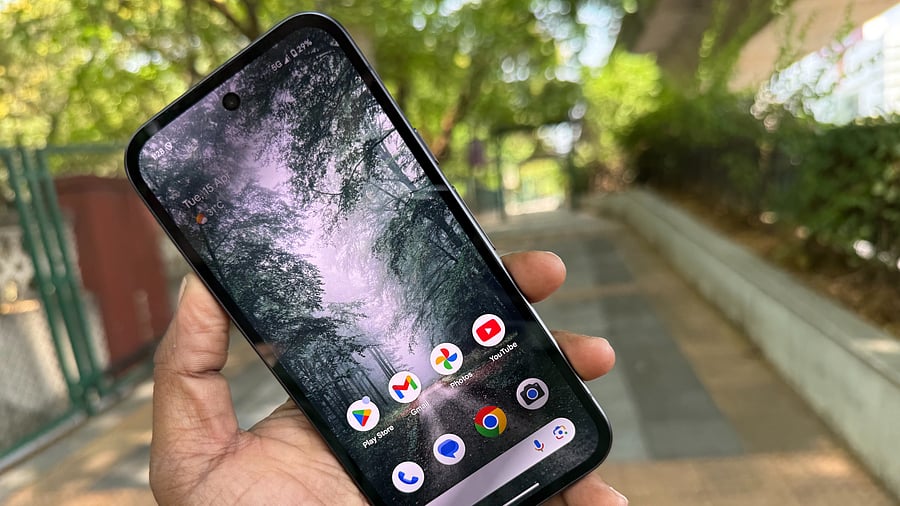
Google Pixel 9a.
Credit: DH Photo/KVN Rohit
In 2021, Google ended the unlimited photo storage on its cloud storage service. Later in 2024, it also ended similar privileges to WhatsApp data.
Since then, users get just 15GB free cloud storage, and for extra space, they have to subscribe to premium Google One plans. It is available in multiple tiers ranging from Lite (30GB; Rs 59/month) to Premium (30TB; Rs 9,750 month).
If you are not willing pay extra money for storage, you can clear unwanted files and multimedia content to make space for new photos and videos captured on the phone.
Here's how to see Google Cloud Storage details on Gmail for iOS and Android:
Step 1: Open the Gmail app >> tap on the account icon in the top left corner
Step 2: You will find the cloud icon with 'Storage used: % of 15GB
Step 3: Tap on the cloud icon >> here Google offers details on what percentage of storage is used for photos, Gmail and Google Drive
If the user wants to clear unwanted multimedia content, tap on clean up space. You will be asked to sign in again to clear the storage.
You can check all the files manually and remove the unwanted content.
Users can also delete spam, such as good morning/night greetings forwarded on WhatsApp that gets acculumated in the Google Drive storage.
Here's how to review content on WhatsApp:
Step 1: Open WhatsApp >> Go to the Chats tab, tap more options >> Settings.
Step 2: Tap Storage and data >> Manage storage.
Step 3: Tap Larger than 5 MB or select a specific chat.
Step 4: He/she can tap the sort icon to sort by Newest, Oldest, or Largest.
Step 5: Tap an item to review. You can also:
View which chat the item is from and when it was sent: Tap more options > Show in chat >> Star or unstar the item: Tap star or unstar. This will help in identifying personal data and discarding useless content.
Google Photos Storage Quota management support page
[screen-grab]
Here's how to delete content on WhatsApp:
Step 1: Open WhatsApp >> Go to the Chats tab, select more options >> Settings.
Step 2: Tap Storage and data> Manage storage.
Step 3: Tap Larger than 5 MB, or select a specific chat.
Delete all at once:
'Delete all items': Tap Select all if you want to delete all items at once.
Handpick individual content:
Delete individual items: Tap and hold an item he/she wants to delete. Select additional items to delete multiple items at once.
Step 4: Tap delete (trash icon) >> Select Delete starred items to delete starred items.
Or select Delete any copies to delete duplicates.
Step 5: Tap Delete.
If you happen to have good memory power and remember videos that need to be deleted, you can search for them on WhatsApp by following this process:
Step 1: Open WhatsApp >> On the Chats tab, tap search.
Step 2: Tap Photos, Videos, or Documents.
Step 3: Tap the item you want to delete.
Step 4: Tap More options > Delete.
Optionally, tap Delete media in this chat.
Step 5: Tap Delete.
Also, if you have synced WhatsApp with the Google Photos app, you have to delete it too, as it may get duplicated and fill up Google Cloud storage.
Users are advised to go to the Google Photos Storage help page (here) to get the estimation, and the smart feature will list types of data such as Large Photos & videos, Blurry Photos, Other apps, Screenshots and Unsupported videos.
Based on your requirement, you can delete the unwanted multimedia content.
Get the latest news on new launches, gadget reviews, apps, cybersecurity, and more on personal technology only on DH Tech.